- Services
- Dynamic Captions
- Animated Avatars
- BWT Videos
- ChatBot Agents

AI ChatbotsSupport more customers with a friendly greeting and helpful chatbot agent.
- Chatbots Category
- Video Editing

Custom Variables For EasyBlogs Add Custom Tags to Your Website or Blog Tutorial


Meta-tags are the same as the Keyword and Description boxes that you fill in when you build a page with Block Builder so just use the same rules for content as you do when you build a page at SBI.
The only thing is that this is the default tags that will go on just the internally built pages of your blog (e.g. archives, archive index, etc.) so use your primary keyword phrases for your website.
IMPORTANT: Be sure that you have your template coded in order for these default keyword and description meta-tags to work. See Add Keyword and Description Metatags to The Default & Article Pages Generated in Easy Blogs.
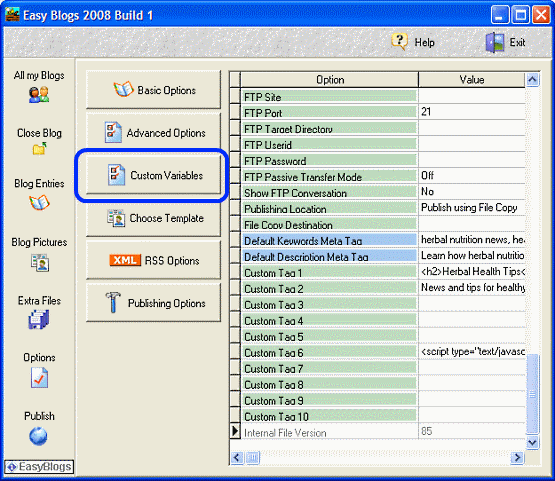
Step 1. Open the Easy Blogs software and go to 'Options' and find the button 'Custom Variables.' Click to open.
Step 2. Here you will insert your primary and some secondary keywords in the "Default Keywords Meta Tag" box and a descriptive sentence containing your website's themed primary keyword phrase in the "Default Descriptions Meta Tag" box.....just like you do when using Page Builder!
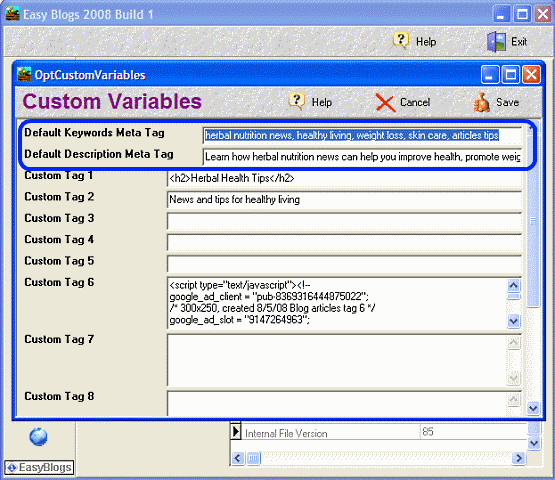
Step 3.Click Save  in the top menu bar and close.
Step 4. Now, go to the tutorial, Add Keyword and Description Meta-tags To The Default & Article Pages Generated in Easy Blogs to insert the necessary codes in the Default Page section of your template if you have not already done so.
The Easy Blogs (EB) help file says this in addition to using the custom variables.
Custom Variables Tags
There are 10 custom variables available at the global level to allow the advanced user to customize templates beyond the basic blog. These variables are defined in the 'options' tab of EB and allow you to insert your own html code. You will need to edit your template to add a custom tag such as;
[%custom.tag.1%].
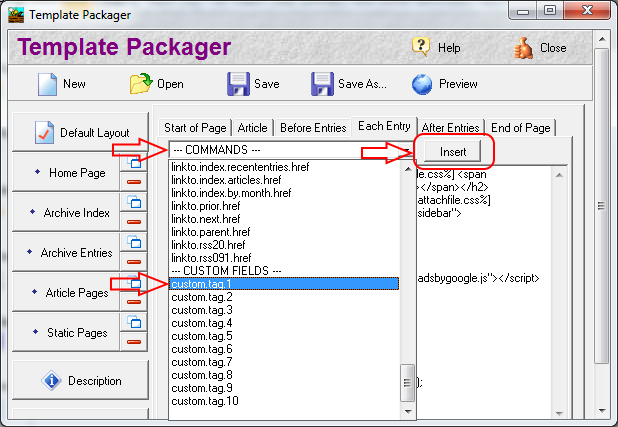
Step 5 Open the 'Template Packager' and navigate to your template and then open it. Navigate to the location you want the tag to appear. Click on the dropdown menu box --COMMANDS--. Select your tag. Don't forget to click the 'Insert' button to insert the tag into the code. Note: inserting does not overwrite any highlighted content. If you are replacing existing code you will need to remove the old code manually.
Example of possible uses are page counters or banner advertisement code that you want to appear on all pages. If you ever need to change the value of a custom tag, just change the contents on the "custom variable options" screen and all your pages will be updated the next time you generate your website.
 Tip: Here is a work around for putting AdSense code in your articles. Since AdSense only allows only 3 ad blocks per page this restriction limits your capabilities. Your home page and default template pages may have AdSense in the sidebars and bottom of the page, but not in the entries.
However, for article pages (and static pages) I like to have AdSense in the content. Since article pages don't change with every update you don't need to worry about the code getting parsed.
To do this put the AdSense code in custom tag box #6 through #10. Doing this will allow you to use the tag instead of the actual code. This way Easy Blogs doesn't parse your code and render it unusable.
In an article page, make a call to the code with the tag [%custom.tag.1%]. You will have to type it in manually or paste a copy. It works.
Home : Easy Blogs Tutorials : custom variables



61 W. Annabelle Ave. Hazel Park,
MI. 48030-1103, U.S.A.
telephone: (248)546-0374
email: support@best-website-tools.com
© Copyright 2007-2026 All rights Reserved.
Sun: closed
Mon-Fri: 9:00AM to 6:00PM
Sat: 9AM-12:00PM
Closed Holidays
